

How to Use 2 GPUs for Mining
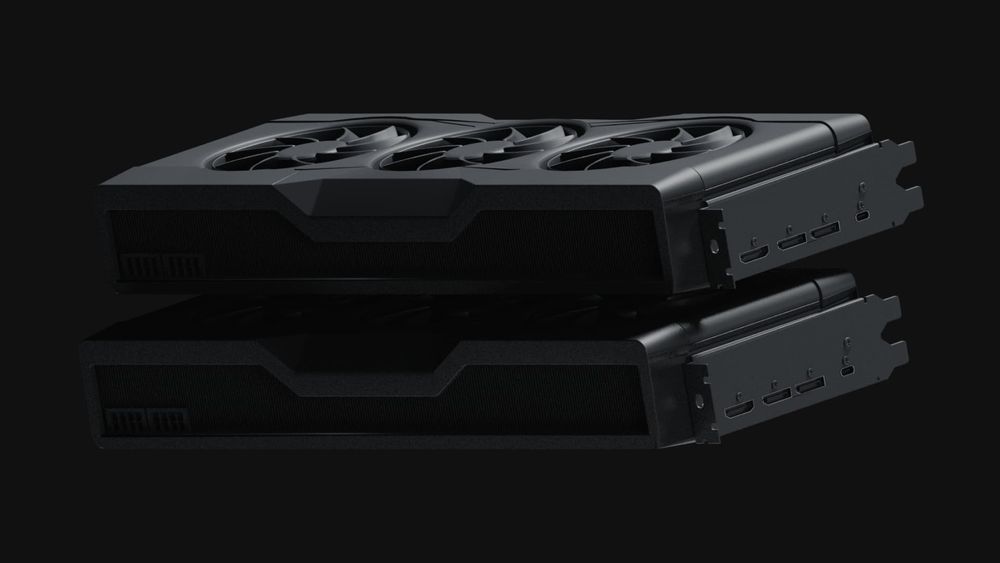

Mining with two GPUs can roughly double your mining speed (hash rate), since GPUs are built for parallel processing tasks like hashing. However, this does not mean your coin earnings or profit simply double — results depend on network difficulty, electricity cost, and coin prices. For many years, people mined Ethereum with GPUs and earned well – but after Ethereum switched to proof-of-stake in 2022, GPU mining on Ethereum’s main network ended. Today Ethereum is no longer mined, and GPU miners use other coins such as Ethereum Classic, Ravencoin, Ergo, and similar projects. This guide explains the benefits of a two-GPU setup and walks you through setting up the rig. You’ll learn what parts you need, how to install the second GPU, configure software, and manage heat and power. By the end, you’ll know how to run a dual-GPU miner smoothly.
Key Takeaways
- A second identical GPU roughly doubles your hash rate and roughly doubles your power draw — net results depend on coin price, network difficulty, and your electricity cost, so always run the numbers through a live mining calculator with current data
- Power sizing is model-specific: follow the GPU manufacturer’s PSU recommendations for your exact cards, give each GPU its own dedicated PCIe power cable, and verify real power draw with a wall wattmeter and software monitoring — never by touching or listening to a PSU under load
- Safe temperatures, power limits, and fan curves vary by GPU model and algorithm — use the limits documented by the manufacturer for your card, change one setting at a time, and test stability after each change
- Ethereum has not been mineable since its 2022 switch to Proof-of-Stake — dual-GPU rigs today mine other Proof-of-Work coins, so confirm current coin, algorithm, and software support before you build
Benefits of Using 2 GPUs for Mining
Higher Hashrate and Earnings. Two GPUs together generate roughly twice the hashing power of one. This can increase rewards, but profits do not scale linearly: difficulty adjustments and market prices often reduce expected gains.
As of 2026, most GPU mining is marginal at typical household electricity rates; whether a specific setup covers its costs depends on the coin, current difficulty, and your power price — check a live calculator.
Better Hardware Utilization. Putting two GPUs in one rig makes efficient use of your other parts. Both cards share the same motherboard, CPU, case, and power supply, so the cost per GPU is lower. For example, building one PC with two cards is cheaper than building two separate PCs with one card each, since you don’t double the case, CPU, or PSU.
Flexibility and Redundancy. With two GPUs you can do more things. You could mine two different coins at once (one coin on each GPU) if you want. Or you could use one GPU for gaming or other tasks while the other mines (just be aware it may slow the mining GPU if heavily used). Having two also adds redundancy: if one card overheats or crashes, the other can keep mining, so you’re not completely offline.
Learning and Future Expansion. Using a dual-GPU setup is good practice for scaling up later. You’ll learn how to manage multiple cards (overclocking, troubleshooting, etc.). Once you’re comfortable with two GPUs, adding more cards or building a larger mining rig will be easier, because you’ve already worked out how to deal with the extra hardware.
In short, two GPUs working in parallel give you about twice the hashing output as one GPU, as long as your system supports them. The next sections show exactly what you need and how to build and run a two-GPU mining rig.
What You Need to Use 2 GPUs
Motherboard with Multiple PCIe Slots. Make sure your motherboard has two PCI Express slots for graphics cards. Ideally it has two full-size (x16) slots, or one x16 and another smaller slot (x4 or x1). Any standard ATX board with two slots will do. If the slots are close together and space is tight, you can use a PCIe riser cable for the second card (e.g. plug a riser into a smaller slot to place the GPU away from the board). In summary, ensure the board can physically fit two GPUs.
If you use a riser, choose a quality powered riser and power it exactly as the riser manufacturer instructs; poorly made or incorrectly powered risers are a common failure point in mining rigs.
Adequate Power Supply (PSU). Two GPUs draw a lot of power, so you need a strong PSU.
There is no single wattage rule that fits all cards. Check the PSU wattage that the GPU manufacturer recommends for each of your exact models, add the consumption of the rest of the system, and choose a quality unit with comfortable headroom rather than one that will run near full load around the clock. A reputable PSU calculator (from a PSU or component manufacturer) helps you size this for your specific build.
Make sure your PSU has enough PCIe 6-pin or 8-pin connectors for both cards. If it doesn’t, you may need additional cables or a higher-wattage PSU. Using a quality, reliable PSU is important: under-powered or cheap PSUs can crash under constant load and even get damaged.
Proper Cooling and Spacing. Two GPUs produce twice the heat of one. Ensure your case (or open rig frame) has good airflow. You may need extra case fans, or an open bench with external fans. Ideally leave a one-slot gap between cards. If they’re too close, use a riser to move one card away for airflow. More airflow keeps temperatures lower, which extends card life and prevents throttling.
Safe operating temperatures differ by GPU model and generation — check the maximum and recommended temperatures that the manufacturer documents for your exact card, and keep sustained load temperatures comfortably below those limits; cooler generally means longer hardware life.
Remember to clean dust filters and vents regularly.
Operating System and Drivers. Use an OS that supports multi-GPU (Windows 10/11, most Linux distros, or mining OSes like HiveOS). Install the latest GPU drivers. If both cards are NVIDIA (or both AMD), install the single driver package for that brand. If you’re mixing NVIDIA and AMD, you can install both drivers: for example, install NVIDIA’s driver first, then AMD’s (or vice versa). After booting with both cards, check in Device Manager (Windows) or using command-line tools (nvidia-smi, rocm-smi, or lspci on Linux) that both GPUs are recognized. The mining software just needs the drivers in place to use the cards.
Mining Software. Have mining software ready that supports your GPU setup and the coin you plan to mine.
As of 2026, commonly used multi-GPU options include lolMiner, GMiner, and TeamRedMiner. lolMiner and GMiner support both NVIDIA and AMD setups depending on the algorithm, while TeamRedMiner is focused on AMD GPUs.
Specialized mining operating systems such as HiveOS and RaveOS are also widely used. Older miners like PhoenixMiner are no longer maintained and are not recommended. Download miners from official sources to avoid fake versions.
Other Essentials. Basic tools like a screwdriver and cable ties (to manage power cables) are handy. You’ll need a monitor (or TV) to see the display during setup. After setup, you can run the rig without a monitor, but for Windows it’s sometimes useful to have at least one card with a display output. (If running headless, a dummy HDMI plug can fool Windows into keeping the GPU active.) Lastly, ensure a stable internet connection since mining constantly communicates with the pool.
With all components ready, you can install the second GPU and move on to setting up the system.
How to Connect and Install 2 GPUs
Follow these steps carefully to add the second GPU:
- Power Down Safely: Shut off your PC and unplug the PSU from the wall. Press the power button once to discharge any residual power. Wait a few minutes for components to cool. Ground yourself by touching the metal case (or wear an anti-static strap) before handling components.
- Open the Case: Remove the side panel to access the motherboard. Find the second PCIe slot (usually below the first). If needed, remove the slot cover on the back of the case so the GPU’s ports can fit.
- Insert the GPU: Hold the second GPU by its edges and align it over the PCIe slot. Firmly press straight down until it clicks into place (you may feel the locking tab snap). Then screw the GPU’s bracket into the case. If using a riser, plug the riser into the slot and attach the GPU to the riser’s cable, then secure it.
- Connect Power Cables: Plug the PSU’s PCIe power connectors into the second GPU. Use a dedicated cable for each card if possible (avoid daisy-chaining two GPUs on one cable). Ensure each 6-pin or 8-pin connector is fully seated.
With the second GPU installed, plug the PSU back in and turn on the PC. The OS should boot and detect the additional card.
Installing Mining Software for Dual GPU Setup
With the hardware ready, set up the miner software:
Multi-GPU Settings: By default, most miners automatically use GPU0, GPU1, etc. (all available GPUs). You don’t need to add a special flag for two GPUs. (If you wanted to mine two different coins, you could run two instances of the miner software separately, each assigned to one GPU using something like -d 0 or -d 1, but for beginners it’s simpler to mine the same coin on both.)
Pool and Wallet: Make sure you’ve already signed up for a mining pool for your chosen coin and have a wallet address. You’ll enter these in the miner config as above. Having a unique worker name (like MyRig1) helps you identify your machine on the pool’s dashboard.
After configuring, your miner is ready to run.
Setting Up and Running the Miner with 2 GPUs
Now start mining and check that both GPUs work:
- Launch the Miner: Run the start script or program you configured. A console or terminal window will open, and you should see lines listing the GPUs. For example, it may print “Found 2 CUDA devices” or show each GPU’s name. This confirms the miner detected both cards.
- Verify Both GPUs Are Mining: After initialization, the miner will begin hashing. You should see output for each card, for example: GPU0: 30.5 MH/s, GPU1: 29.8 MH/s (sample rates). If both GPUs show a nonzero hash rate, they are actively mining. If one card shows 0 MH/s or is missing from the list, it isn’t being used – stop and check your hardware/drivers.
- Watch for Shares: In the console, you’ll see lines like “Share found” or “Share accepted by pool.” This means the GPUs are submitting valid work. Both GPUs contribute to finding shares; the miner may tag which GPU found a share, but you will see frequent accept messages if both are working.
- Stability Check: Let the miner run a few minutes. If it stays running without errors and keeps accepting shares, it’s stable. If it crashes or errors appear (e.g., “out of memory”), you may need to stop and adjust settings.
- Fine-Tune (Optional): Once both GPUs are mining, you can adjust each card for better efficiency. Many miners lower the core clock and power limit and tune the memory clock, which can cut power draw and heat with a small hashrate cost. Safe values are specific to each GPU model and algorithm — use tools like MSI Afterburner, change one parameter at a time in small steps, and test stability after each change. Set fan curves so temperatures stay within the limits documented by your card’s manufacturer.
- Automatic Start (Optional): If the rig runs fine, you might want it to start mining on boot. In Windows, you could place a shortcut to your start script in the Startup folder, or use Task Scheduler. In Linux, you could add a cron job or service. This way the rig will auto-mine after any reboot.
At this point both GPUs should be working and mining. You’ll see their combined hash rate reported by the miner and steady accept rates from the pool. Move on to the next section to ensure your rig stays cool and stable over time.
Managing Power, Heat, and Stability
Running two GPUs 24/7 means higher power draw and more heat. Follow these practices to keep the rig stable:
Power Monitoring: Use a wattmeter on the wall outlet to see the rig’s total power draw and keep it comfortably within your PSU’s rated capacity, with headroom to spare. Judge PSU load by the wattmeter reading and software monitoring — not by how hot or loud the unit seems. If measured draw is close to the PSU’s rating, lower the GPUs’ power limits or upgrade the PSU.
Separate Power Cables: Connect each GPU with its own PCIe power cable from the PSU (don’t daisy-chain two cards on one cable if you can avoid it). This prevents overloading a single cable or connector.
Undervolting/Underclocking: Reducing a GPU’s power limit can noticeably cut power use and heat, often with only a modest hashrate cost. How far a specific card can be limited safely varies by model and algorithm — start conservatively, adjust in small steps, and test stability at each step.
Temperature Control: Keep core and memory temperatures within the limits the manufacturer documents for your exact GPU model — these limits differ between models and memory types. If temperatures climb toward those limits under mining load, improve cooling: raise fan speeds, add case fans, or improve airflow around the rig. Sustained operation near maximum temperatures shortens hardware life.
Improve Airflow: If using a case, consider removing unnecessary front panels or running with one side panel open. Pointing a fan at the GPUs can help. On open rigs, ensure there’s no hot air recirculation. Dust can accumulate quickly – periodically turn off and blow out cards and fans with compressed air.
Windows Virtual Memory: In modern GPU mining, you typically do not need to adjust the Windows page file. The old recommendation to increase the page file (to ~16 GB per GPU) was specific to Ethash’s large DAG file and is generally unnecessary for most current algorithms (like KawPow, Autolykos, etc.). Only increase the page file if you actually encounter out-of-memory errors.
System Stability: Since mining is a full-load task, any unstable setting will eventually crash. If you experience crashes or one GPU drops out, revert overclocks to stock or slowly dial them back. Test each GPU individually if necessary (run the miner with one card at a time) to isolate faulty hardware or settings.
Protection and Monitoring: Use a surge protector or UPS to guard against power spikes/outages. In the BIOS (as mentioned), set the rig to power on after AC loss. Consider software watchdogs: some mining programs or external tools can restart the miner or system if it hangs or a GPU gets too hot. Logging tools (like MSI Afterburner’s logging or HWiNFO) can alert you to rising temperatures.
Regular Checks: Especially in the first days, check that both GPUs are running at intended speeds and temperatures using your monitoring tools and the wall wattmeter. Do not touch the PSU or internal components while the rig is powered — diagnose load with the wattmeter and software, not by feel. Listen from a normal distance for failing fans or unusual noises, and don’t leave a new rig completely unattended until it has proven stable for 24–48 hours.
By managing these aspects – power, cooling, and stable settings – you’ll ensure your dual-GPU rig runs reliably. Proper tuning and maintenance lets the system run for long stretches without intervention.
Monitoring and Troubleshooting Dual GPU Mining
Keep an eye on your rig and know how to fix common issues:
Monitor Hardware: Use programs like MSI Afterburner, GPU-Z, or HWiNFO on Windows to view each GPU’s temperature, load, clock speeds, and fan speed in real time. On Linux, tools like nvidia-smi (NVIDIA) or rocm-smi (AMD) give similar info. You can also configure on-screen displays or logging. Always check that both cards are within safe temps and running near 100% load.
Miner Output: The miner console shows each GPU’s hash rate and occasionally per-GPU stats. Leave it visible or log its output so you can see if a GPU stops hashing or throws errors.
Remote Dashboards: If you switch to a mining OS (HiveOS, etc.) or use apps like Minerstat, you can view GPU stats on your phone or another computer. Many pools also show each worker’s hash rate on their website.
Problem – GPU Not Detected: If after booting only one GPU shows up, first check the physical connections. Reseat the second GPU and its power cables. Try swapping slots or testing the GPU alone to confirm it works. Make sure BIOS 4G Decoding is enabled. In Windows, open Device Manager to see if the second card appears (with or without a warning icon). If it’s not listed, reinstall drivers.
Problem – PC Won’t Boot with 2 GPUs: This can be BIOS-related or power-related. Try booting with only one GPU, then change BIOS settings: disable Fast Boot, enable CSM, etc. Ensure your PSU is strong enough for startup. Some motherboards need CSM/Legacy mode enabled to detect all cards properly.
Problem – Miner Crashes or Freezes: Common causes are overclock instability or memory issues. Reduce GPU clocks or power limits and try again. If it says out-of-memory, increase the page file or lower memory clock. You can also try a different mining software to see if it’s a software bug.
Problem – Uneven Performance: If one GPU has a much lower hash rate, check its temperature. It might be thermal throttling due to higher heat. Swap positions or adjust its clocks. On Windows, note which GPU is ‘GPU0’ vs ‘GPU1’ (they often correspond to slot order); you may need to tune each individually. Also ensure both cards are set to ‘Compute Mode’ if AMD or performance mode if NVIDIA (some drivers reduce clocks on standard mode).
Problem – Frequent Rejections or No Shares: Check your pool URL, wallet address, and any password fields in the miner config. A typo can result in no accepted shares. Also verify your network is stable.
Problem – Driver Conflicts: Running AMD and NVIDIA on one Windows PC can sometimes conflict. If drivers seem to fight, you may uninstall and reinstall drivers (AMD then NVIDIA, for example). On Linux, use appropriate packages for each. If issues persist, consider mining each brand separately (e.g. run one miner for NVIDIA, another for AMD).
General Tips: If one GPU stops mining (0 H/s) while the other keeps going, look for error messages in the miner console. You may need to restart the miner. Watch the rig the first few days to catch any anomalies early.
By regularly monitoring and addressing issues one by one, you’ll keep your dual-GPU miner running at high uptime. Troubleshooting often involves isolating components (test one GPU at a time) and adjusting settings until stable.
Is It Worth It? Profitability with 2 GPUs
Two GPUs will roughly double your mining output, but they also roughly double your electricity cost. Whether it’s “worth it” depends on your specific situation:
Hashrate vs. Power. Two identical GPUs produce roughly twice the hash rate of one. In principle, this could double your coin output (assuming no change in difficulty), but mining difficulty usually rises as more hashpower comes online, so actual earnings often don’t exactly double. Meanwhile, they also draw twice the power.
To see your real cost, multiply the rig’s measured wall power draw by 24 hours and by your electricity price per kWh — that daily figure is what your mining revenue has to beat. In simple terms, you get roughly 2× the revenue minus 2× the power cost.
Return on Investment (ROI). Consider the cost of the second GPU (and any extra PSU or accessories). Payback time equals the card’s cost divided by its net daily earnings after electricity — and that figure changes constantly with coin prices and network difficulty. Use a live mining calculator (like WhatToMine) with your exact GPU model, your electricity price, and today’s data, and treat the result as a snapshot, not a promise.
Market Conditions (2026). GPU mining results remain far below the levels seen during Ethereum’s Proof-of-Work era. After Ethereum moved to Proof-of-Stake, GPU miners shifted to smaller PoW networks, where results can change quickly with coin price, network difficulty, hardware efficiency, and electricity costs. Before mining, check a live profitability calculator and date the result to the day of review.
Scale. A two-GPU rig is a small, hobby-level setup. If you wanted serious income, you’d need many GPUs (and more advanced setups). The complexity and cost grow quickly with each added card (more space, larger PSU, specialized risers, etc.). Two GPUs is a nice “gentle” size – it’s easy to fit in a normal PC case.
Heat and Noise. Two GPUs make more heat. Some miners see this as a bonus in winter (it warms the room!), but consider your electricity bill goes up. They’ll also make more noise from fans. Make sure your space can handle the extra heat and sound.
Reusability. One advantage is flexibility. If mining becomes unprofitable, you still have two good GPUs for gaming, AI tasks, or resale. This limits risk compared to a rig with dozens of cards. Whether mining pays for you depends mostly on your electricity cost.
Hobby vs. Investment. Many people with a couple of GPUs mine partly for learning or to earn a bit of crypto on the side. Two GPUs is a manageable size for a personal computer. If you have cheap power and spare hardware, a rig may cover its costs; with expensive power it may not. Your personal situation — electricity price, local climate, willingness to tinker — decides whether it’s “worth it,” and only a live calculator with your numbers can answer that.
In summary, two GPUs will roughly double your hashing output compared to one, but also double your power costs. Calculate carefully (use a mining calculator with current data). The two cards still have value and use outside of mining, which gives you options if the market changes.
FAQ
Can I use 2 different GPU models for mining?
Yes. You can mix and match GPUs (even different brands) in one rig. Just install all needed drivers (NVIDIA drivers for NVIDIA cards, AMD drivers for AMD cards). Mining software will see each card separately. Many miners run mixed rigs successfully; the key is making sure each card is recognized by the system.
Do I need a special motherboard to run 2 GPUs?
No special “mining motherboard” is needed. Any standard desktop motherboard with two PCIe slots will work. You don’t need SLI/CrossFire. Just make sure the board physically has two free slots (and check the manual if adding a second GPU disables something like an M.2 slot). If the slots are close, consider risers or leave a slot gap to improve cooling.
How much PSU wattage do I need for 2 GPUs?
It depends entirely on your exact cards. Check the manufacturer’s recommended PSU wattage for each GPU model, add the rest of the system, and choose a quality PSU with clear headroom rather than one that will run near its limit. Also count the number of PCIe cables: you’ll need enough 6/8-pin connectors so that each card gets its own dedicated cable.
What mining software works best for dual GPU setups?
Most miners support multiple cards by default. As of 2026, actively maintained options include lolMiner and GMiner (both support NVIDIA and AMD depending on the algorithm) and TeamRedMiner (AMD-focused). Older tools like T-Rex Miner and PhoenixMiner haven't received updates in years and aren't recommended. Use the miner suited to your chosen coin and GPU brand, and always download it from the official source.
Will 2 GPUs double my mining profits?
Two GPUs will roughly double your hashing power compared to one GPU, but not necessarily double your profits. Mining difficulty and coin prices fluctuate, so earnings won’t simply double, and you’ll pay for twice the electricity. Net results scale roughly linearly — about 2× revenue minus 2× power cost — with no bonus for the second card.
How do I monitor temperatures and performance for both GPUs?
Use monitoring tools. On Windows, MSI Afterburner or GPU-Z can display each GPU’s temperature, usage, clock, and fan speed. HWMonitor or HWiNFO show similar info. On Linux, nvidia-smi (NVIDIA) or rocm-smi (AMD) list each card’s status. Your miner program usually prints each GPU’s hash rate too. Some miners or mining dashboards (HiveOS, etc.) provide remote web interfaces or phone apps. Check that both GPUs run at expected hash rates and stay within the temperature limits documented by the manufacturer for your card model. You can also set alerts (some software or scripts) if a GPU exceeds a temperature threshold or stops responding, so you can fix it quickly.
without growing costs
cryptocurrencies