

How to Connect an ASIC Miner to a Pool - The Basics for Newbies in 2026

A Word of Caution: We’re laying out the general basics here, but keep in mind this isn’t investment, legal, tax, mining profitability, or technical advice. Crypto mining is a bit of a minefield. We’re talking electricity costs, network difficulty, hardware efficiency, pool fees, uptime, market prices, and the state of your internet connection all playing a part. And let’s be real: there’s no guarantee you’ll make mining rewards or a profit just by connecting a miner. So do your own research, and make sure to check the pool rules, device docs, tax requirements, and local laws before making any move.
Safety First: Get the basics right. ASIC miners can be pretty hot and loud, and they use a lot of power, so don’t stick them in a cupboard or near any flammable materials. Set up in a safe place with good airflow, and get a power supply that can handle the load.
Connecting an ASIC miner to a pool isn’t rocket science. It’s just a case of following the setup steps one by one.
The setup process is pretty straightforward if you take it one step at a time: plug it in, find the IP address, pop up the web interface in your browser, add the pool’s Stratum URL, enter your worker name, save the settings, and then check on your worker’s status.
This guide’s going to walk you through how connecting an ASIC to a pool works in 2026, using Antminers and EMCD Pool as an example.
Menus are liable to change depending on the device, firmware, coin, or pool settings, so make sure to check the manual and the pool’s instructions before making any changes.
The Bottom Line
- ASIC miners usually connect to a pool via an Ethernet cable.
- You’re going to need the ASIC’s local IP address to get into the web interface.
- Antminers usually get configured through a browser-based admin panel.
- A Stratum URL tells the ASIC which pool server to connect to.
- A worker name is what lets the pool identify your device.
- For EMCD Pool, worker names usually follow the login.worker_name format.
- Stratum addresses and ports can change depending on the coin, region, and connection type.
- ASICs are designed to work on specific algorithms, so don’t expect to use a Bitcoin ASIC to mine something else.
- It might take a few minutes for the ASIC to show up in the pool dashboard after you’ve set it up.
- There’s no setup method that guarantees mining rewards or profit.
Step 1: Get the physical stuff sorted
First things first, get the actual hardware hooked up properly.
Before you even turn the ASIC on, you should have:
- a good power supply
- the right power supply unit (PSU) for the job
- a wired Ethernet connection to your router
- a router that’s actually working and has internet access
- enough space around the miner to keep it from overheating
- a safe place to put the heat and noise
ASIC miners are pretty power-hungry and hot, so don’t even think about sticking them in a closed cabinet or near any flammable materials.
Basic setup:
- Plug the ASIC into the power supply.
- Connect it to the router with an Ethernet cable.
- Turn it on.
- Give it a few minutes to boot up and connect to the local network.
Most ASIC miners use a wired Ethernet connection by default, but some may use Wi-Fi or an adapter. Wired connections are usually more stable, though.
Step 2: Find the ASIC miner’s IP address
To configure the thing, you’re going to need its IP address. You can usually find it by:
- checking the router’s admin panel for connected devices
- using the manufacturer’s IP reporter tool, if available
- scanning the local network with a trusted tool
Once you’ve found it, jot it down.
You’ll need it to get into the web interface in your browser.
What is an Antminer?
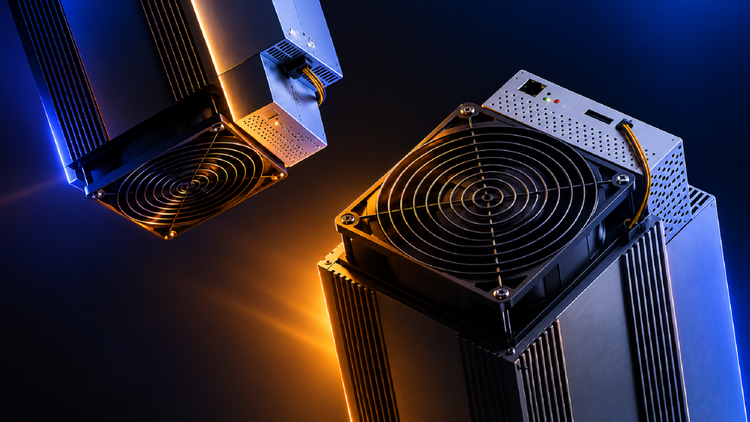
Antminer is a popular line of ASIC miners made by Bitmain.
Lots of newbies start with Antminers because they’re pretty common in Bitcoin mining and other Proof-of-Work setups. The exact interface can change depending on the model and firmware version, but the basic config process is similar across many ASICs.
For Bitcoin mining, the device needs to be able to handle the SHA-256 algorithm. ASICs are designed for specific algorithms, so a Bitcoin ASIC won’t be able to mine all Proof-of-Work coins. Your laptop or phone isn’t much use for Bitcoin mining these days.
Step 3: Log in to the ASIC admin panel
Get a browser on a device that’s on the same local network as the miner.
- Open your browser.
- Enter the miner’s IP address in the address bar.
- Wait for the login page to load up.
- Enter the username and password.
On older Antminers, the default login might be:
- username:
root - password:
root
But check your manual, because it’s not always that straightforward. Some devices require a unique password for sign-in or ask you to set one up on your very first login. Give your device label, manual, or the manufacturer’s documentation a quick look.
After you’ve logged in and got past that hurdle, you should be able to find the miner’s control panel. The pool settings are often hiding under labels like:
- Miner Configuration
- Pool Settings
- Mining Settings
- Configuration
- Network or Miner
The exact menu name will probably be different on each device.
Step 4: Get to grips with Stratum URLs and worker names
To get your ASIC connected to a mining pool, you’ll need two things:
- a Stratum URL
- a worker name
What is a Stratum URL?
The Stratum URL is the address that your miner uses to talk to the mining pool.
It tells your ASIC which pool server it should connect to, and the closer that pool server is to you geographically, the lower the network delays are likely to be.
There are two main types of connections:
stratum+tcp://- the standard TCP connectionstratum+tls://- an encrypted connection, which can be useful if you want to add an extra layer of security or if standard TCP ports are blocked.
The available connection types, regions, and ports will vary depending on the pool and the coin you’re mining.
What is a worker name?
The worker name is what identifies your ASIC inside the pool dashboard.
For EMCD Pool, the worker name format is usually login.worker_name.
For example: emcdlogin.worker01
The dot is very important here. The bit before the dot is your login username, and the bit after it is your device name.
Using separate worker names for each ASIC is a good idea because it makes it easier to track each device individually.
Try to avoid using any special characters in your worker name. Some pools won’t allow them, especially characters like @, &, \, |, ", and !.
Step 5: Set up the pool settings
Open the mining or pool configuration section in your ASIC admin panel.
You should find fields like:
- Pool URL or Address
- Worker
- Password
Important: Stratum URLs, ports, fees, payout rules, supported coins, and availability can change, so make sure you copy the current values from the official pool dashboard or help center before plugging them into your miner.
For instance, EMCD Pool materials list the following BTC Stratum options:
stratum+tcp://gate.emcd.network:3333for Russiastratum+tcp://eu.emcd.network:3333for Europestratum+tcp://kz.emcd.network:3333for Kazakhstanstratum+tcp://cn.emcd.network:3333for Chinastratum+tcp://us.emcd.network:3333for America
One thing to bear in mind: the port number varies from one coin to another, so make sure you’re using the right one.
An example setup
Pool 1 URL:
stratum+tcp://eu.emcd.network:3333
Worker:
emcdlogin.worker01
Password:
leave it blank, unless your device or pool instructions require you to enter something
Pool 2 URL:
stratum+tcp://gate.emcd.network:3333
Worker:
emcdlogin.worker01
Password:
leave it blank, unless your device or pool instructions require you to enter something
Pool 3 URL:
stratum+tcp://us.emcd.network:3333
Worker:
emcdlogin.worker01
Password:
leave it blank, unless your device or pool instructions require you to enter something
Many ASIC interfaces let you set up to three pool addresses. The first one is usually your main connection, and the second and third ones are backups in case the main server goes down.
Save the settings, and restart your ASIC if required before the new pool configuration kicks in.
Step 6: Check your miner’s status
Once you’ve saved the settings, your ASIC should start connecting to the pool and submitting shares.
You can check its status in two places:
- the ASIC web interface
- the pool dashboard
In the ASIC interface, have a look for things like:
- hashrate
- fan speed
- temperature
- pool connection status
- accepted and rejected shares
- any hardware errors
In the pool dashboard, check the worker status.
When you first connect a new worker, it might take a few minutes to show up in the pool dashboard. It might initially show as ‘unstable’ while it syncs with the pool, and then move to ‘active’ once it’s consistently submitting shares.
You’ll see common worker statuses like:
- Active: the worker is consistently submitting shares without any major issues
- Unstable: the worker is experiencing hashrate fluctuations, a high number of rejected shares, or is still syncing with the pool
- Offline: the worker has not submitted any shares for a while
Some pools allow you to set up notifications for worker status changes, so if your worker goes down, you can get a notification on your phone or via email.
Common mistakes to avoid when setting up an ASIC pool
Even though it all looks fairly straightforward, tiny mistakes can leave your miner not connecting. There are a few common issues that can bite you:
- you get the Stratum URL wrong
- the coin port is wrong
- there’s a typo in the worker name
- that dot at the end of login.worker_name is easy to miss, but crucial
- special characters don’t play nice in the worker name
- your internet connection can be unstable
- the network might block the ports you’re using
- you’re trying to mine with the wrong algorithm for the coin
- the ASIC is running too hot
- the power supply to your ASIC just isn’t reliable
- the ASIC itself is running outdated firmware
- your rejections are running way too high
If your miner isn’t showing up in the pool, check the basics first. Take another look at that Stratum URL. Is it definitely correct? Double-check that coin port. Is the worker name also spot on? Try restarting the ASIC to see if that sorts things. Also, check that all your cables and power connections are secure.
If your ASIC interface does provide logs, take a glance through them and see if that gives you any clues about what’s going wrong.
What to keep an eye on after the ASIC gets connected
Now you’ve got your miner connected to the pool, you need to keep an eye on things to make sure it keeps on running properly.
So, be on the lookout for:
- how it’s doing in real time: is the hashrate as good as it should be?
- what its average hashrate has been over time
- how many shares it’s sending in and how many are getting rejected
- how hot the device is getting
- fan speed: is it coping?
- uptime: how long is it up for?
- pool status: is it still connected?
- payout threshold: has it reached the required threshold?
- firmware version: is it up to date?
- internet stability: is it reliable?
One of the key things to watch out for is rejection rates. They can really eat into your performance. Most of the time, the issue is something simple like network latency, stale shares, invalid shares, or outdated firmware.
It’s not just about getting things up and running once. It’s about keeping the ASIC up and running, keeping it cool, and making sure it keeps sending valid shares.
Using EMCD Pool as an example: how to set up an ASIC pool
This guide is using EMCD Pool as an example of how to set up an ASIC pool. For EMCD Pool, worker settings and dashboard monitoring are available through the account interface.
Here’s the basic workflow:
- Check which coin and algorithm the device and pool support.
- Check what the current Stratum URL and port are for that coin.
- Come up with a worker name that fits the pool’s format.
- Add the Stratum URL and the worker name into the ASIC settings.
- Save those settings and then restart the ASIC if needed.
- Check the device status in the dashboard.
It’s a good idea to use different worker names for different devices. Then it’s much easier to work out which one is having a problem.
Conclusion
You want to understand how connecting your ASIC miner to a pool works in 2026. The basics are pretty easy to follow.
Mainly, it means getting the power plugged in and a solid internet connection, figuring out the ASIC’s IP address, having a look at the web interface, entering the Stratum URL, and using the right worker name format. That’s about it.
Also check that the ASIC is set up to mine the right coin with the right mining algorithm, save the settings, restart the ASIC if you need to, check that the worker actually gets activated, and keep an eye on hashrate, temperature, rejected shares, and uptime.
For EMCD Pool specifically, the key thing is the Stratum server, the coin-specific port, and the login.worker_name format for the worker name.
Getting everything sorted should only take a few minutes.
But keeping it all stable is the real challenge.
Final disclaimer: This article is just general information, not advice on any specific mining strategy, pool, coin, device, wallet, or payout method. Mining rewards are not guaranteed and can vary a lot depending on the state of the network, pool rules, hardware performance, power costs, uptime, fees, rejected shares, local laws, tax obligations, and market prices.
FAQ
How exactly do I connect my ASIC miner to a pool?
First, get your ASIC plugged in to power and a wired internet connection, find the IP address, have a look at the web interface, enter the Stratum URL, add the worker name, save the settings, and then check the worker status.
What’s this Stratum URL that everyone’s talking about?
The Stratum URL is the address of the pool server. It tells your ASIC where to get the mining jobs and send back the share results.
What should I use as a worker name?
For EMCD Pool, it’s pretty much always login.worker_number, e.g. emcdlogin.worker01.
How about just using the same worker name for all my ASICs?
Using the same worker name on all your devices is generally not a good idea. If you do, they’re all going to appear as one entry in the dashboard, which can be a real pain when things start going wrong.
How long does it take for a worker to show up in the dashboard?
It can take quite a while, anywhere from a few minutes to half an hour, before a new worker actually shows up in the dashboard after you start submitting shares.
I’ve got my ASIC set up, but it’s still not showing as active. What’s going on?
There are loads of things that could be wrong, like an incorrect Stratum URL, the wrong port number, a typo in the worker name, an unstable internet connection, blocked ports, overheating, rejected shares, or it’s still syncing with the pool.
TCP or TLS Stratum: which one should I go with?
TCP is the default option and might actually give you a bit of an edge in terms of latency, but TLS uses encryption, so it’s probably the way to go if you need a bit more security or if the standard TCP ports are being blocked by your ISP.
Does plugging in an ASIC guarantee I’ll start making a profit?
No. Mining results depend on a load of different factors, including how efficient your hardware is, how much you’re paying for electricity, the current network difficulty, the mining pool fees, how reliable your setup is, how many shares get rejected, current market prices, and the list goes on.
without growing costs
cryptocurrencies